
Deploy Your First Consent Banner
Last updated: March 18, 20264 min readBeginnerBrand
Once you have an account and API key, deploying the consent banner is as simple as adding one line of code to your website.
1
Get your API key
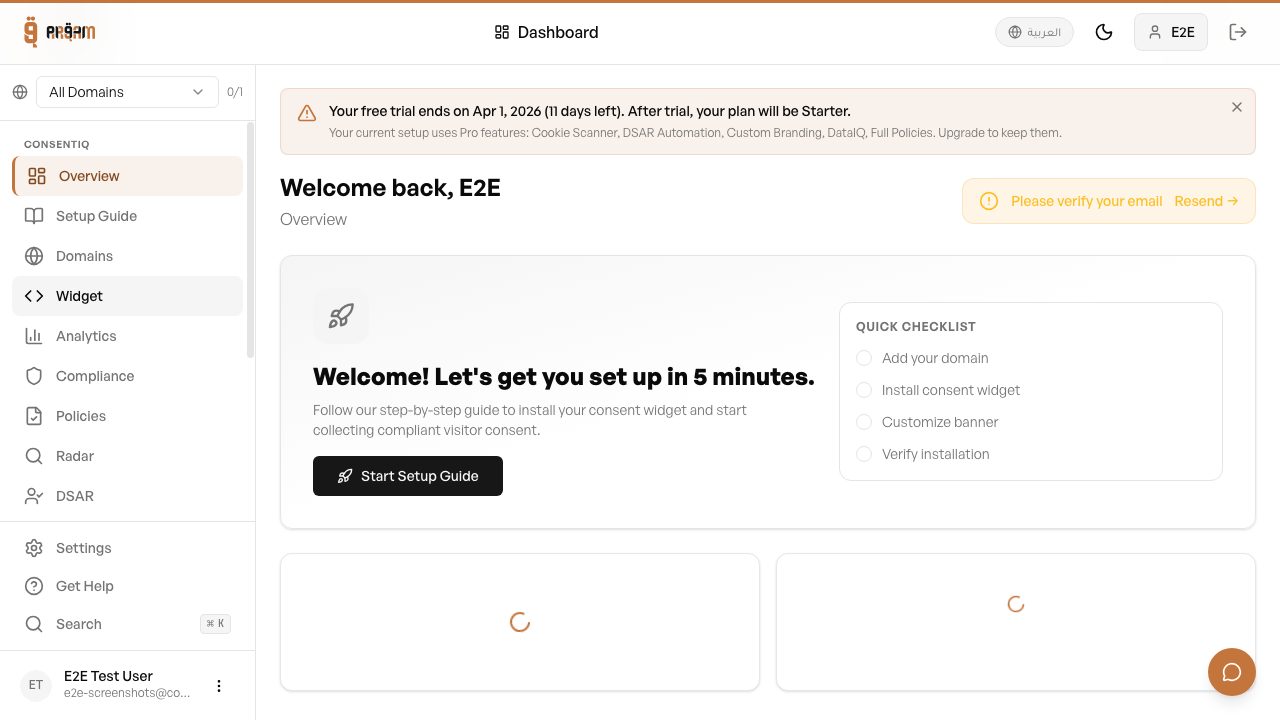
Go to Settings → API Keys in your dashboard and copy your public key.
2
Add the embed code
Paste the script tag into the <head> section of your website.
3
Verify the banner
Visit your website in an incognito window to see the banner.
javascript
<script src="https://cdn.arqam360.com/widget-v2.js" data-key="YOUR_API_KEY"></script>
1
2
Always test in an incognito/private window to see the banner as a first-time visitor. Existing consent cookies will hide the banner in your normal browser.
Verify It's Working
After deploying, check your Consent Logs tab in the dashboard. Within a few minutes of your first visitor interaction, you should see consent records appearing.
Next Steps
Was this article helpful?