
Customize Your Consent Banner
Arqam360's consent banner is fully customizable to match your brand. You can change colors, text, position, and even add your logo.
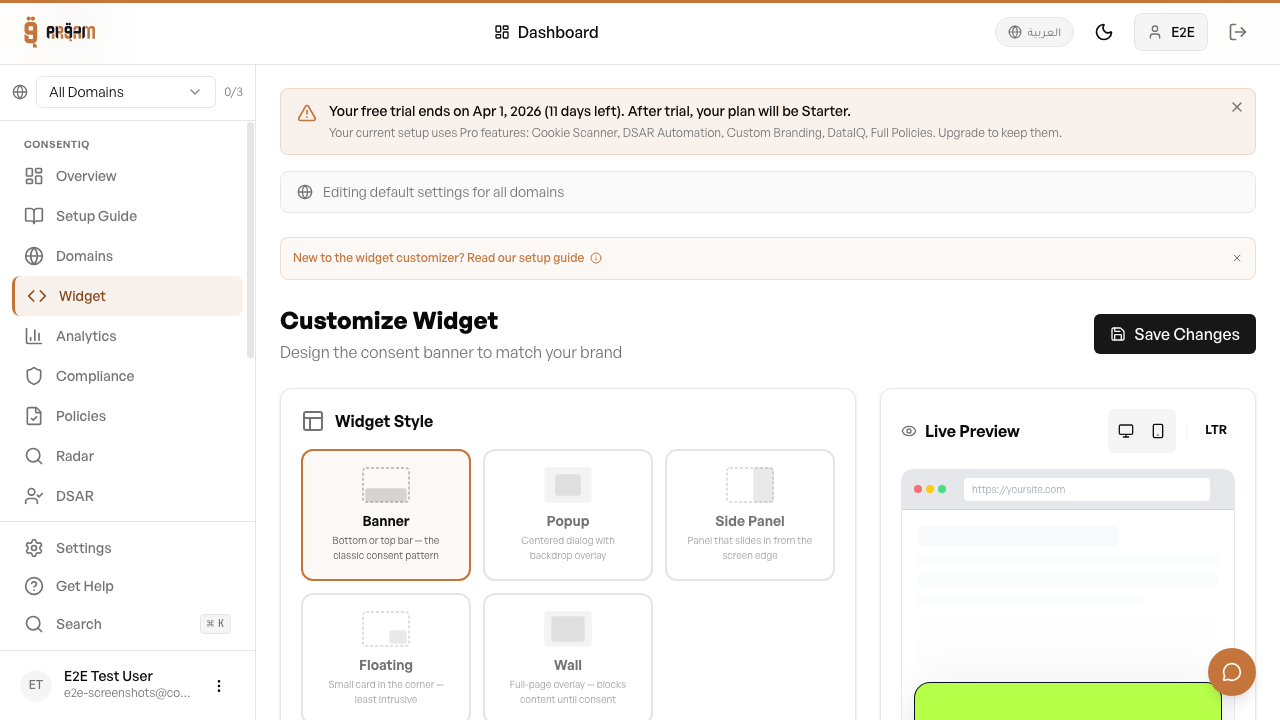
Colors & Theme
Go to Widget → Customize in your dashboard. You can set the primary color, background color, text color, and button styles. The banner inherits your website's dark/light mode by default.
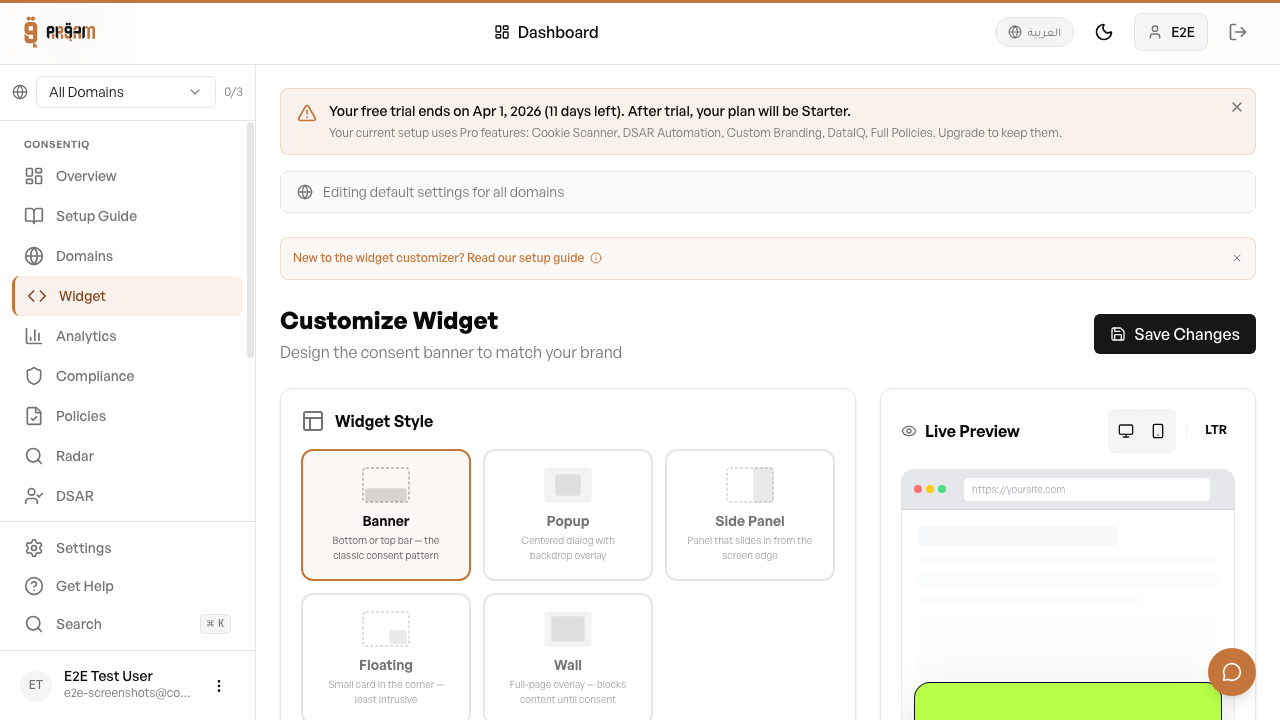
Button & Message Text
Customize the banner message, accept/reject button labels, and the 'manage preferences' link text. All text is translatable via the i18n settings.
Banner Position
- Bottom bar — spans the full width of the screen (default)
- Top bar — appears at the top of the page
- Bottom-left popup — compact popup in the corner
- Bottom-right popup — compact popup on the right side
- Center modal — overlay modal for emphasis

Branding & Logo
Upload your company logo to display it alongside the consent banner. The 'Powered by Arqam360' badge stays on the banner on every plan.
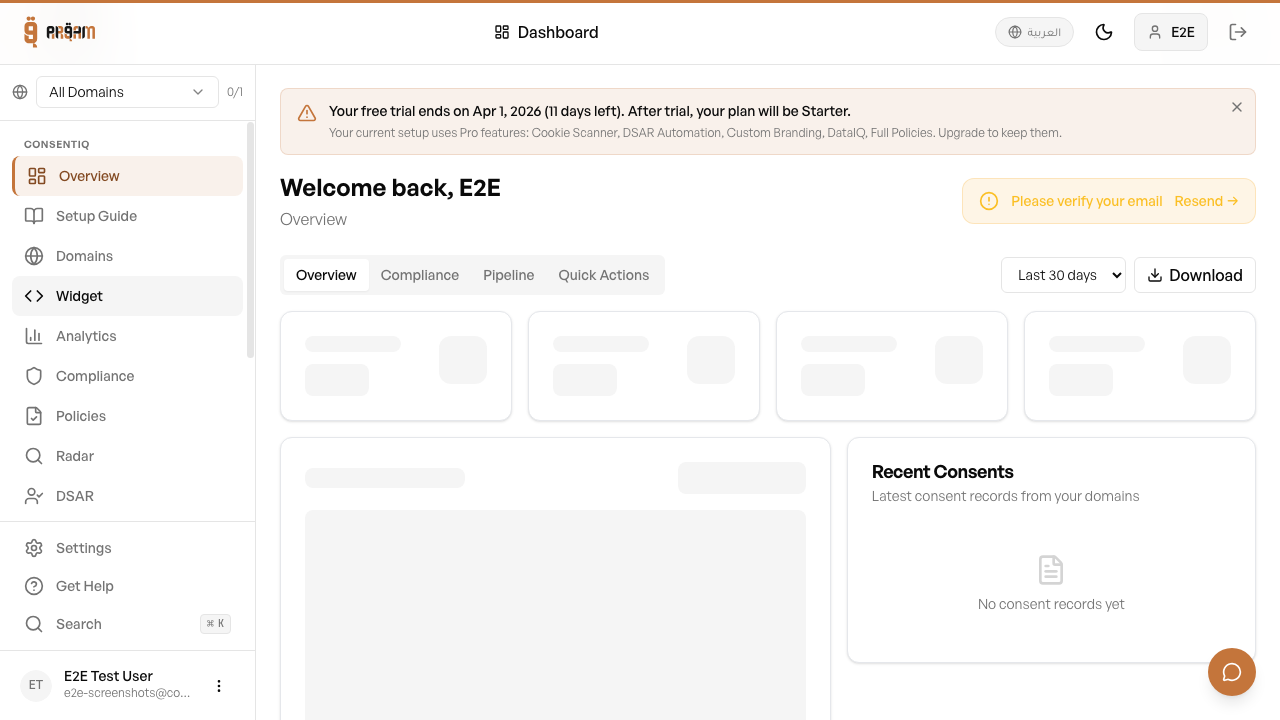
To set up a banner that covers Google's consent requirements, including the Google privacy link: Set up a banner that meets Google's consent requirements.
Next Steps
Was this article helpful?